Spend less time coordinating calls.
Send each applicant a unique link. They record at a suitable time; your team sees who has submitted and who still needs to respond.
Home›For colleges
Give students a way to explain their study plans on camera. Your admissions team can review their answers, record its assessment, and keep the evidence with the application.

Ask applicants to explain their course choice, what they know about your institution and how the study fits their background and goals. Recorded answers let reviewers hear those reasons directly and revisit them when an application needs a closer look.
Students record when they are ready, and recruitment teams spend less time arranging live calls. Reviewers assess answers against your criteria, document strengths and concerns, and request a follow-up when more detail is needed.
The student’s own words, ready for the people making the decision.
Fewer calls to arrange means less staff time spent coordinating interviews. See what that time could be worth for your team.
Send each applicant a unique link. They record at a suitable time; your team sees who has submitted and who still needs to respond.
Start with study intent question packs, add your own prompts, and keep the interview consistent for the applicants in that intake.
Reviewers score defined criteria, record strengths and concerns, and recommend the next step. A second interview can be requested when more evidence is needed.
The student opens a link without creating an account, reads each question, and records on a laptop or phone. They can review their response before submitting the attempt for your team.
That gives international applicants a direct way to explain their plans in their own words, across time zones and without the pressure of joining a scheduled call.
See the student experience
After the review, download a student PDF with the scoring rubric, structured findings and written assessment. Keep it with the admissions file or share it with an authorised education agent where appropriate.
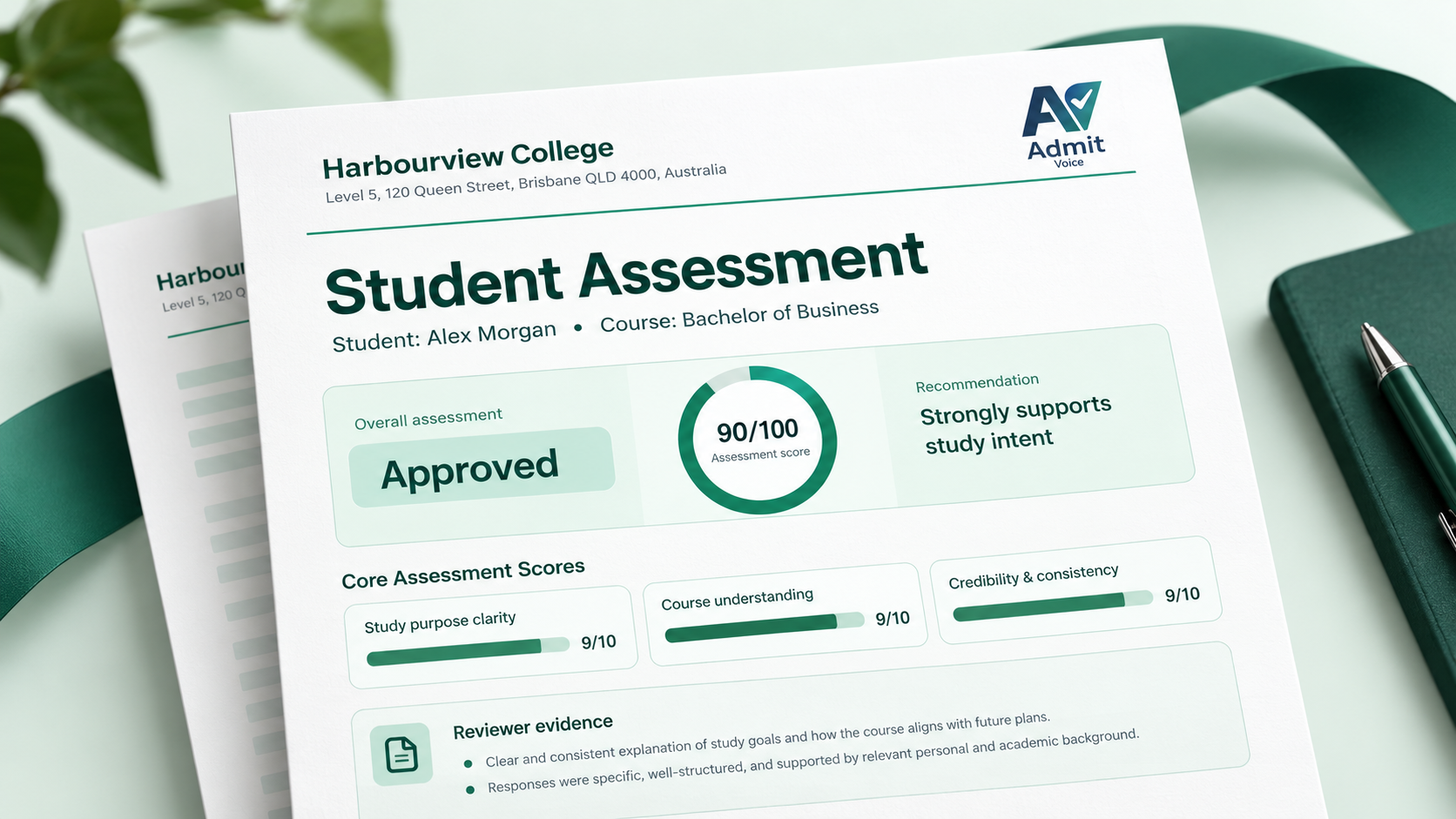
For Australian admissions, questions can explore the student’s course choice, knowledge of the provider, background and future plans. Reviewers can document what they heard and where follow-up is needed.
The assessment is the college’s record of an interview. It does not replace the student’s visa application answers or decide whether a visa is granted.
Australian Genuine Student requirementYes. Use a question pack as a starting point or write your own prompts, including course-specific questions and response time limits.
Your authorised reviewers watch submitted recordings and complete the assessment. AdmitVoice keeps the scores, notes and recommendation with the application.
Yes. After review, authorised users can download the student assessment PDF from the application and keep it with their records.
Collect student answers, review them on your team’s schedule, and keep the assessment in one place.